
To publish videos to Telegram with Taisly, create your own bot and add it to your channel or group. You do not need to write any code. The bot sends your posts; your personal Telegram account remains your usual account.
You will paste just two things into Taisly:
- Bot token - the access key BotFather gives you when you create the bot.
- Channel or group - the link,
@username, or numeric ID of the chat where your posts should appear.
This walkthrough shows a public channel. Group and private-channel differences are explained separately. The screenshots use Telegram on iPhone; button locations may differ in Telegram Desktop and Web. If you are already using Telegram on your computer, you do not need your phone. To add a channel administrator, you need to be the owner or an administrator allowed to appoint administrators.
1. Open BotFather
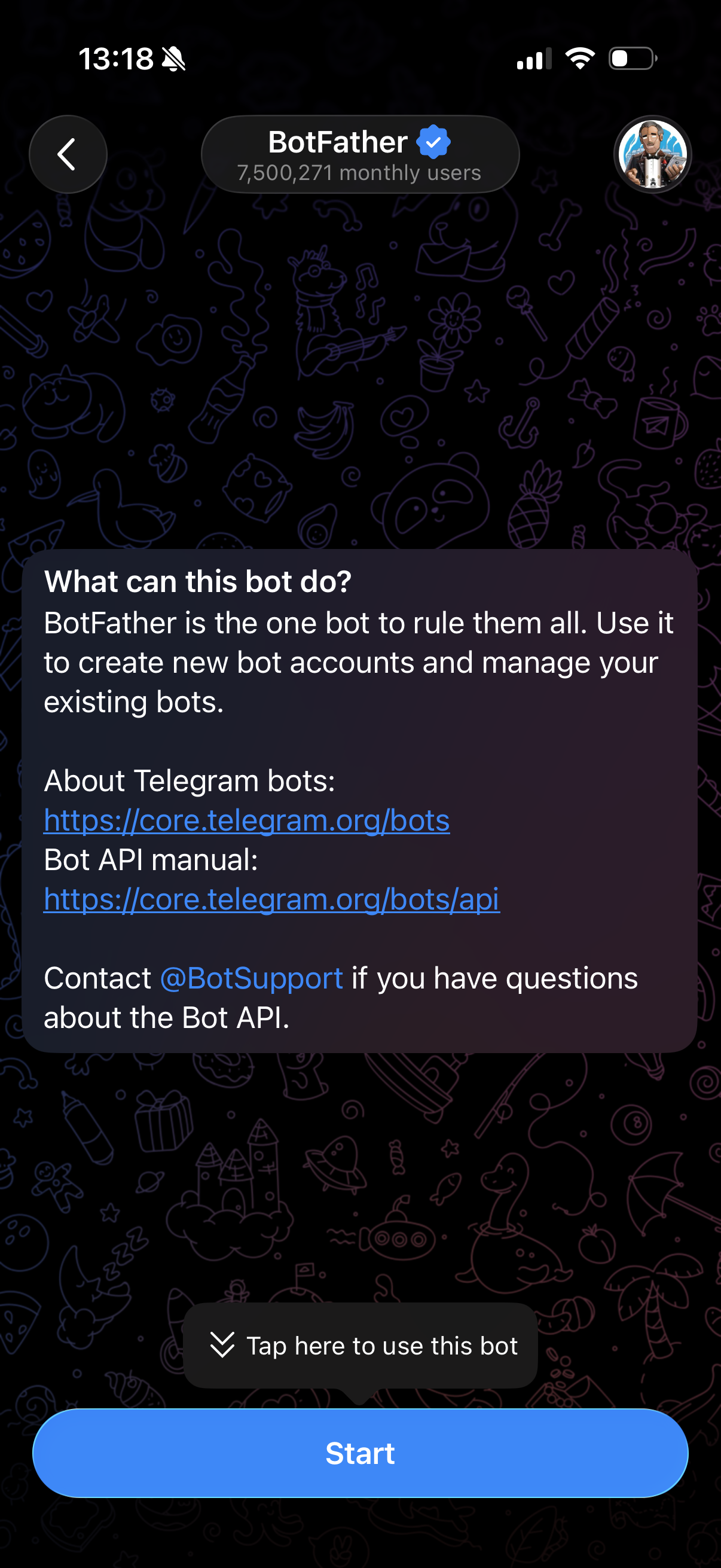
- Open @BotFather. The official BotFather has a blue verification badge.
- Click Start if this is your first visit.
- Click the blue Open button to the left of the message field. This opens the bot management panel.
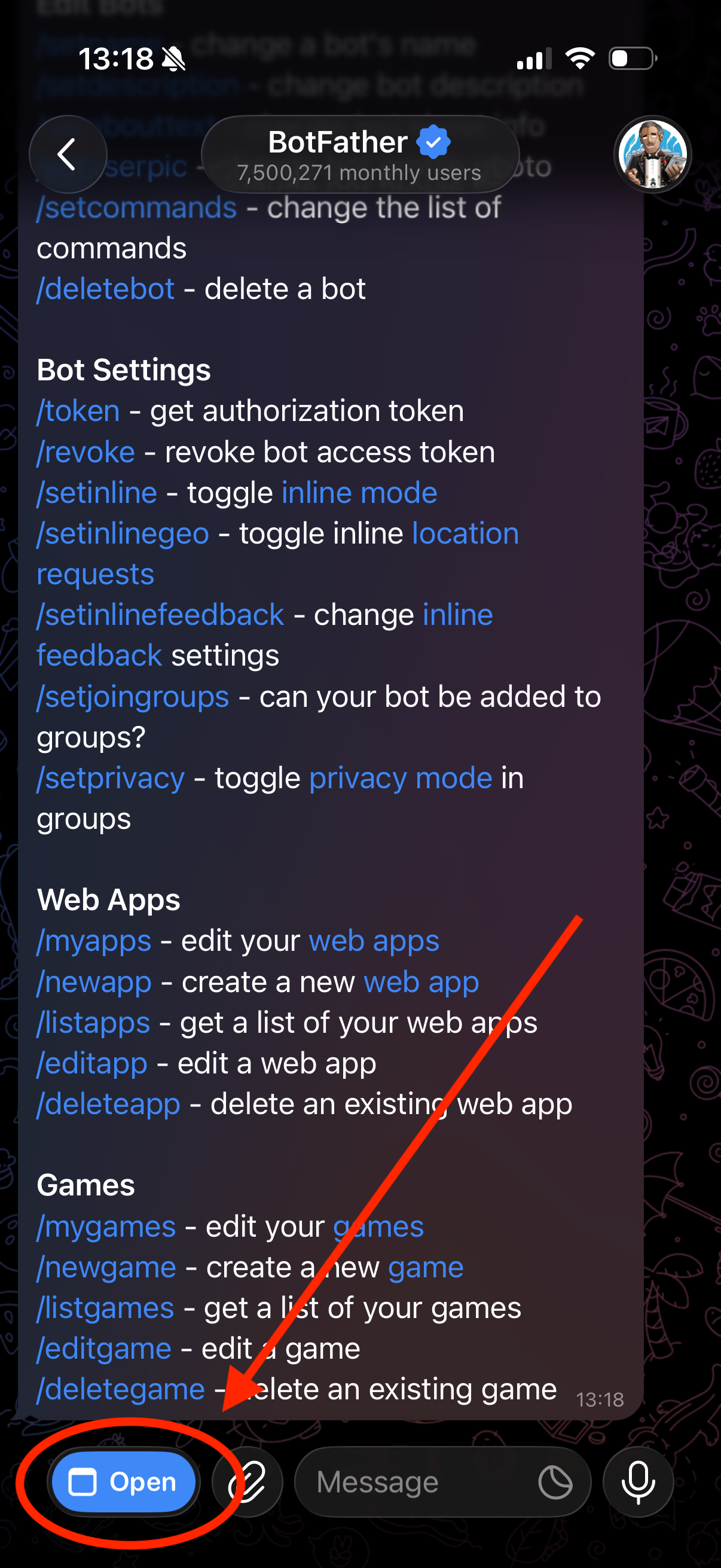
No Open button? Send /newbot in the BotFather chat. It will ask for a name and username, then give you a token. If you use this route, continue at step 3.
2. Create your bot
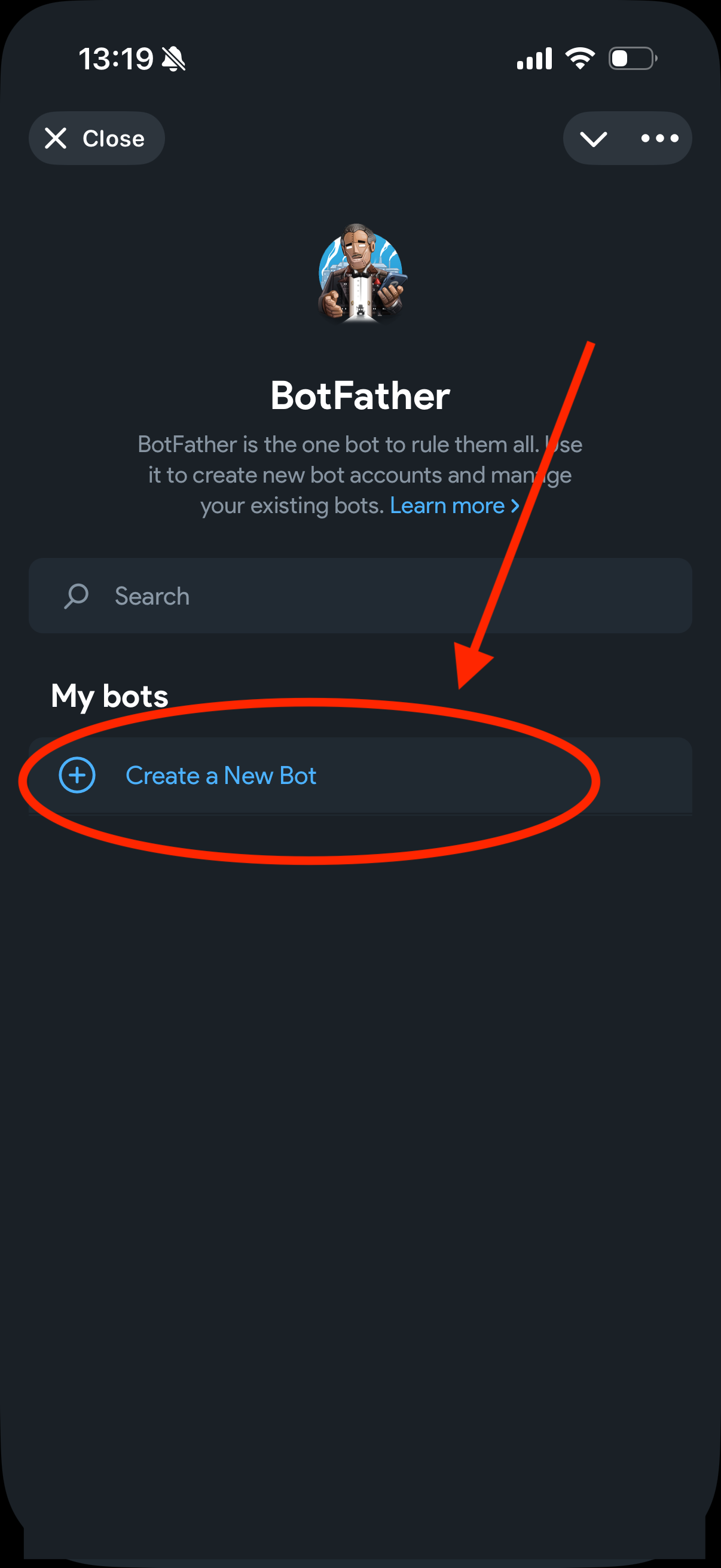
In the BotFather panel, click Create a New Bot.
Complete the New bot form:
- Name - a display name you recognize, such as
My Brand Posts. - About - an optional description. You can leave it blank.
- Username - a unique name ending in
bot, such asmy_brand_posts_bot. Choose a different name if it is taken. is available means you can use it. - Click Create Bot at the bottom of the screen.
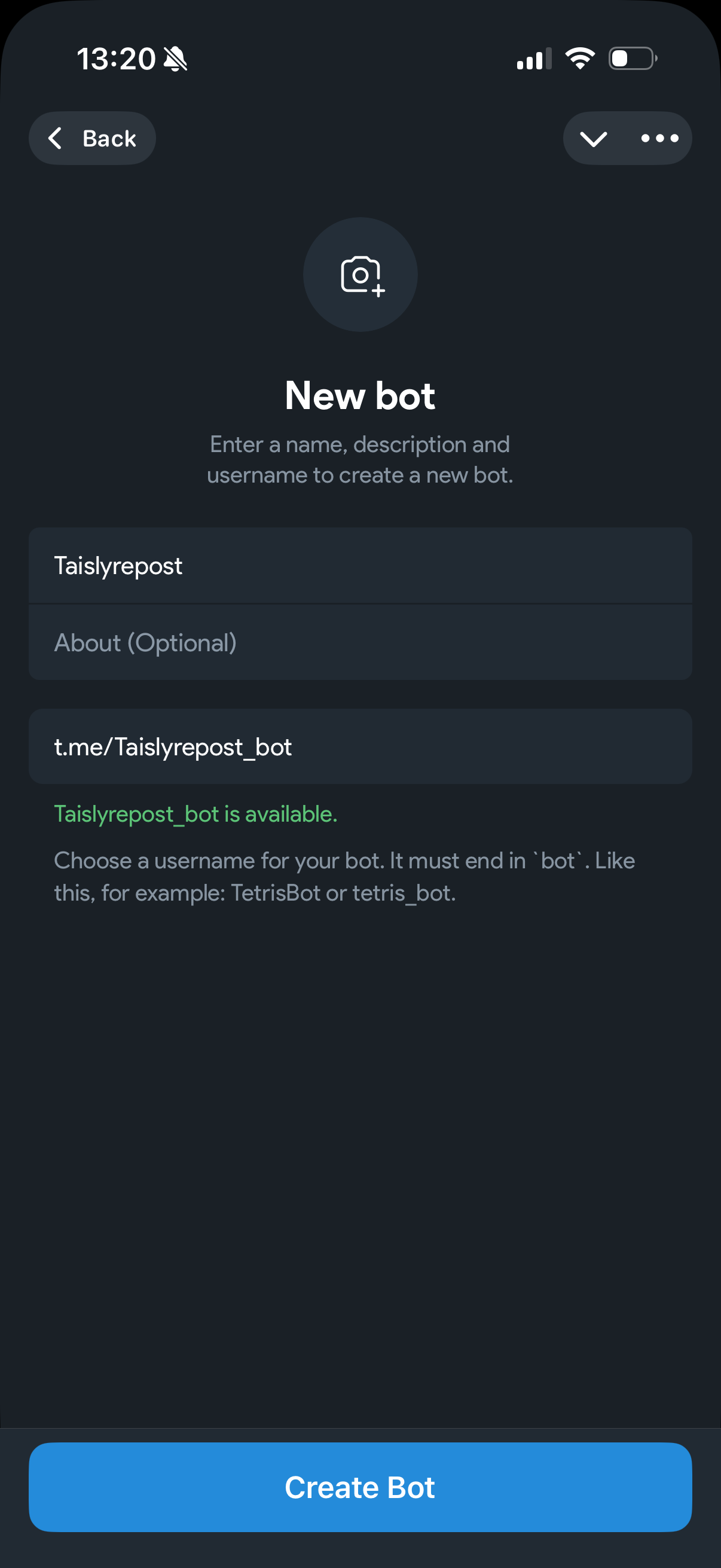
Keep the bot's username handy: you will search for it when adding the bot to your channel. It is not your channel link or your bot token.
3. Copy the bot token
After creation, the bot's page opens. Below its name, you will see an access key and a blue Copy button. Click Copy to copy the complete token, even if only part of it is visible on screen.
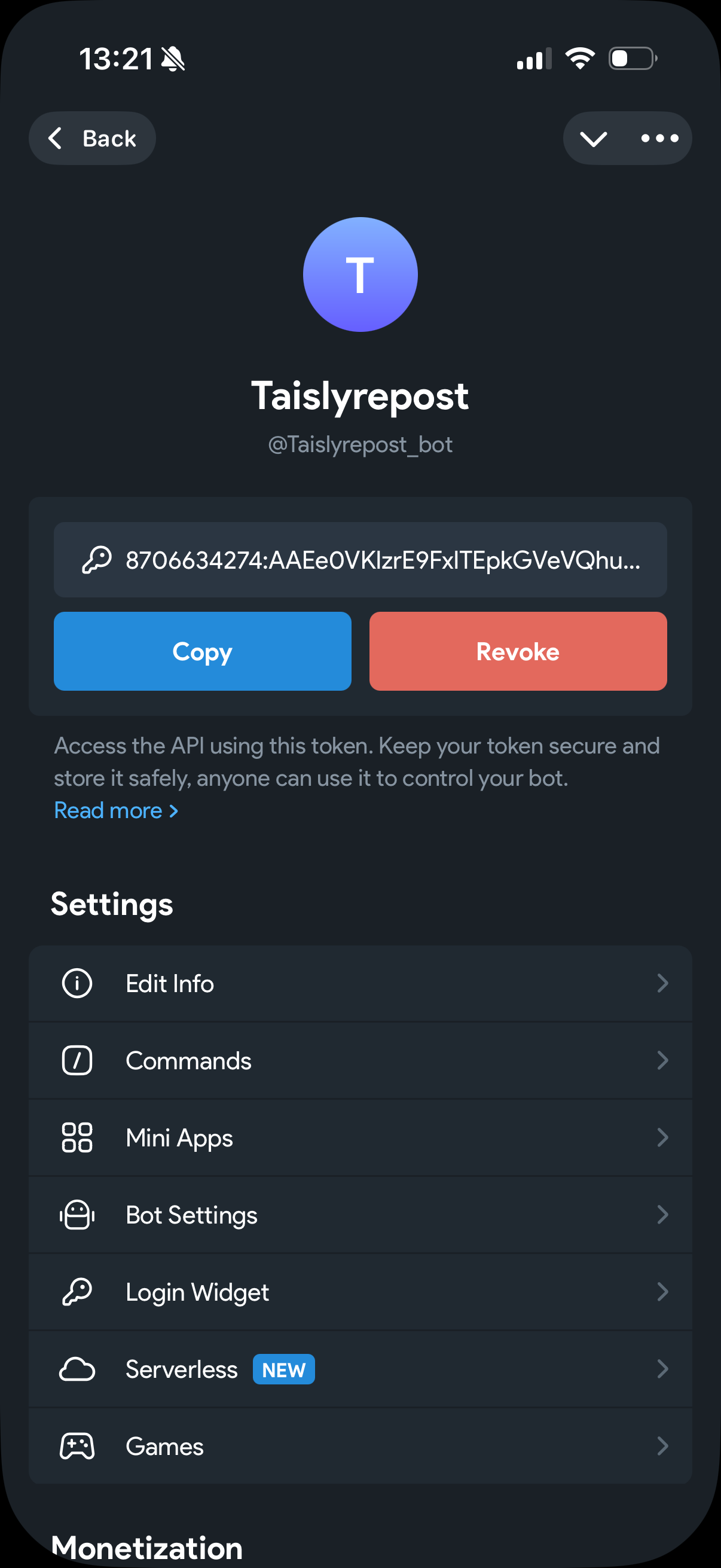
A token looks roughly like 1234567890:AA...: digits, a colon, and a long string. Taisly needs your complete token, not this example. Revoke invalidates the current token, so do not click it to connect.
Keep the bot's page open. Copying the channel link later will replace the token in your clipboard. In step 6, you will use Copy again and paste the token straight into Taisly. You do not need to save it in a note.
4. Add your bot as a channel administrator
Now open your channel, not the BotFather chat or your bot's chat.
- Click the channel's name at the top to open its profile.
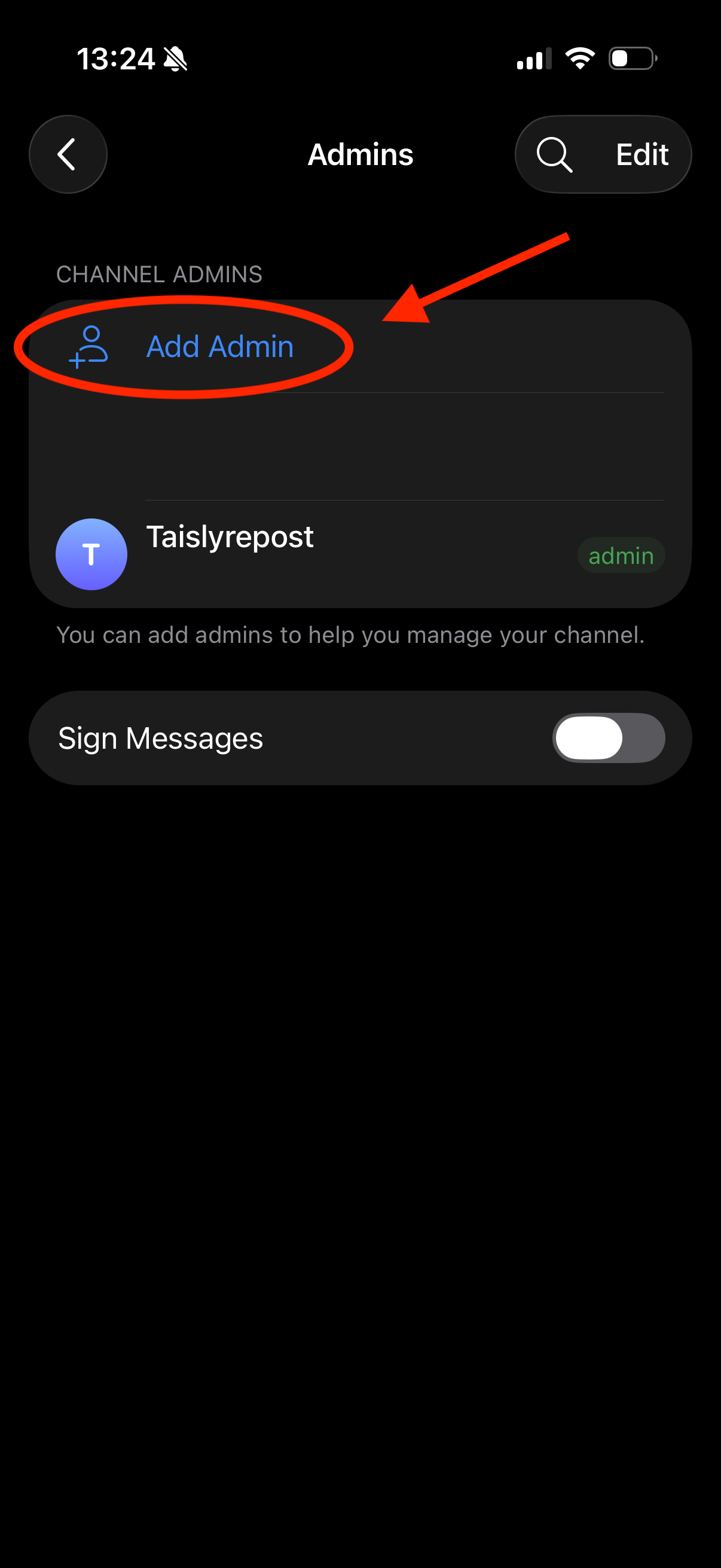
- Open Administrators. Depending on your Telegram version, you may first need to click Edit or open channel management.
- Click Add Admin.
- Search for the username of the bot you created, such as
@my_brand_posts_bot, and select it.
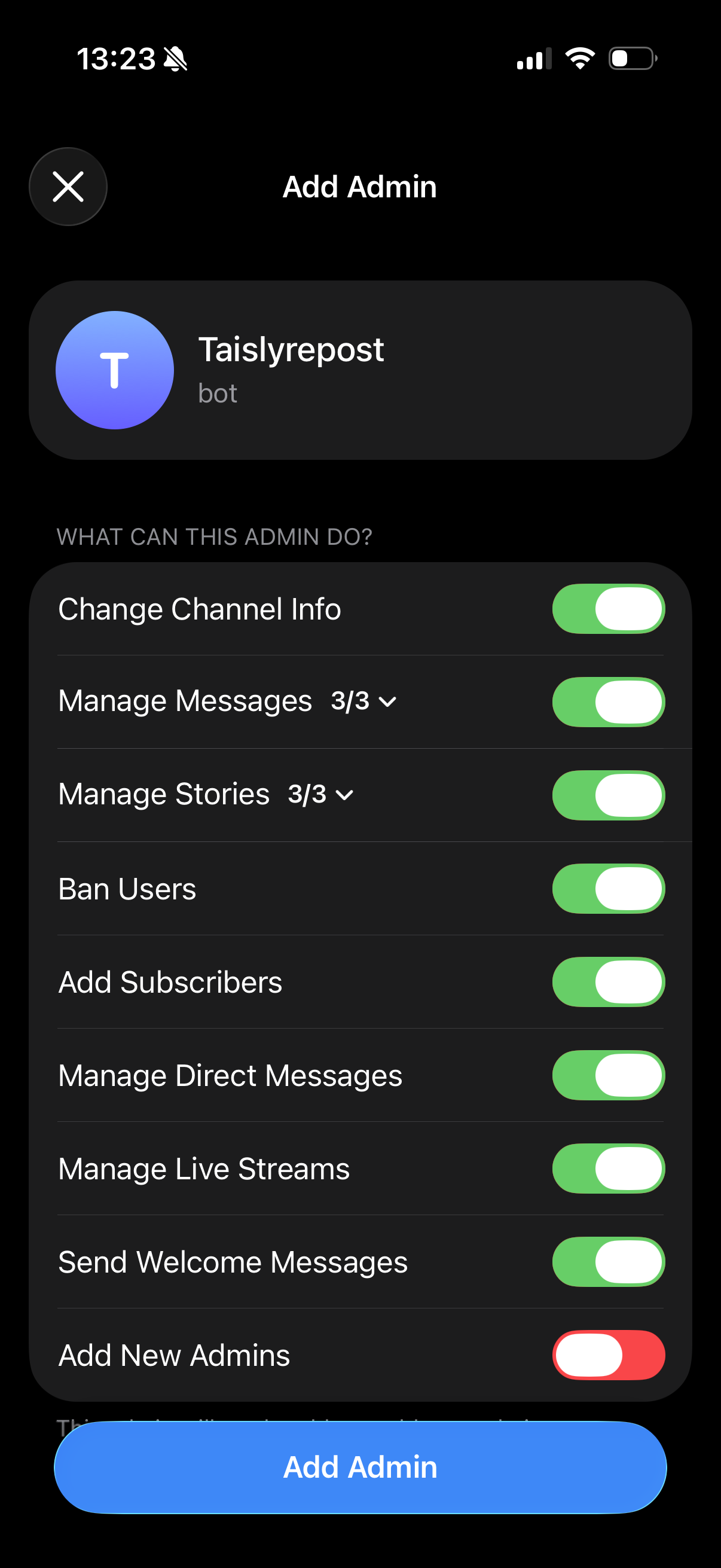
- Allow Post Messages. If permissions are grouped, expand Manage Messages to find this option.
- Confirm with Add Admin or Save.
Connecting a group instead? Open the group's profile, add the bot through the member list, and allow it to send messages and videos. If the group's rules prevent the bot from posting, grant the required permissions or make it an administrator. You do not need a separate bot for groups.
5. Copy the channel link
Return to the channel's profile. Click its public link under share link and copy it. In the screenshot, the link is https://t.me/taislyrepost.
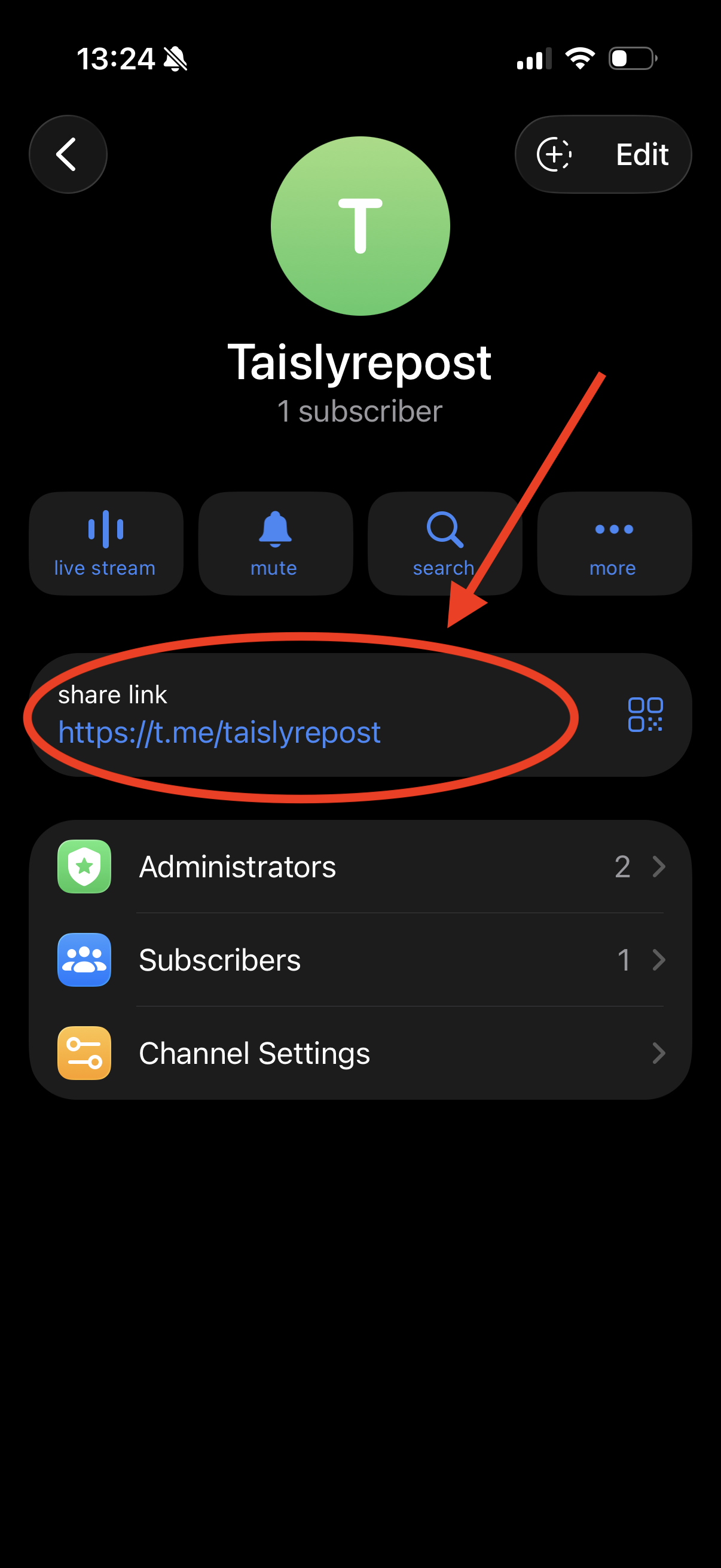
You can use the channel's @username instead of the full link. Copy your own channel's value, not the test example in this guide.
My channel or group is private
An invite link such as https://t.me/+... will not work. Enter the chat's negative numeric ID in Channel or group, for example -1001234567890.
In a private channel or supergroup, copy a link to an existing message. For https://t.me/c/1234567890/42, the chat ID is -1001234567890. The 42 is a message number: do not paste it into Taisly. If this kind of link is unavailable, use the chat's numeric ID instead.
6. Fill in the two fields in Taisly
- Open Taisly and go to Accounts or Post.
- Click the add-account button next to Telegram.
- Review the requirements and click Connect to open the form.
- Return to your bot's page in BotFather, click Copy again, and immediately paste the key into Bot token in Taisly.
- Open the channel's profile, copy its link again, and immediately paste it into Channel or group. You can enter the
@usernameor chat ID from step 5 instead. - Click Connect.
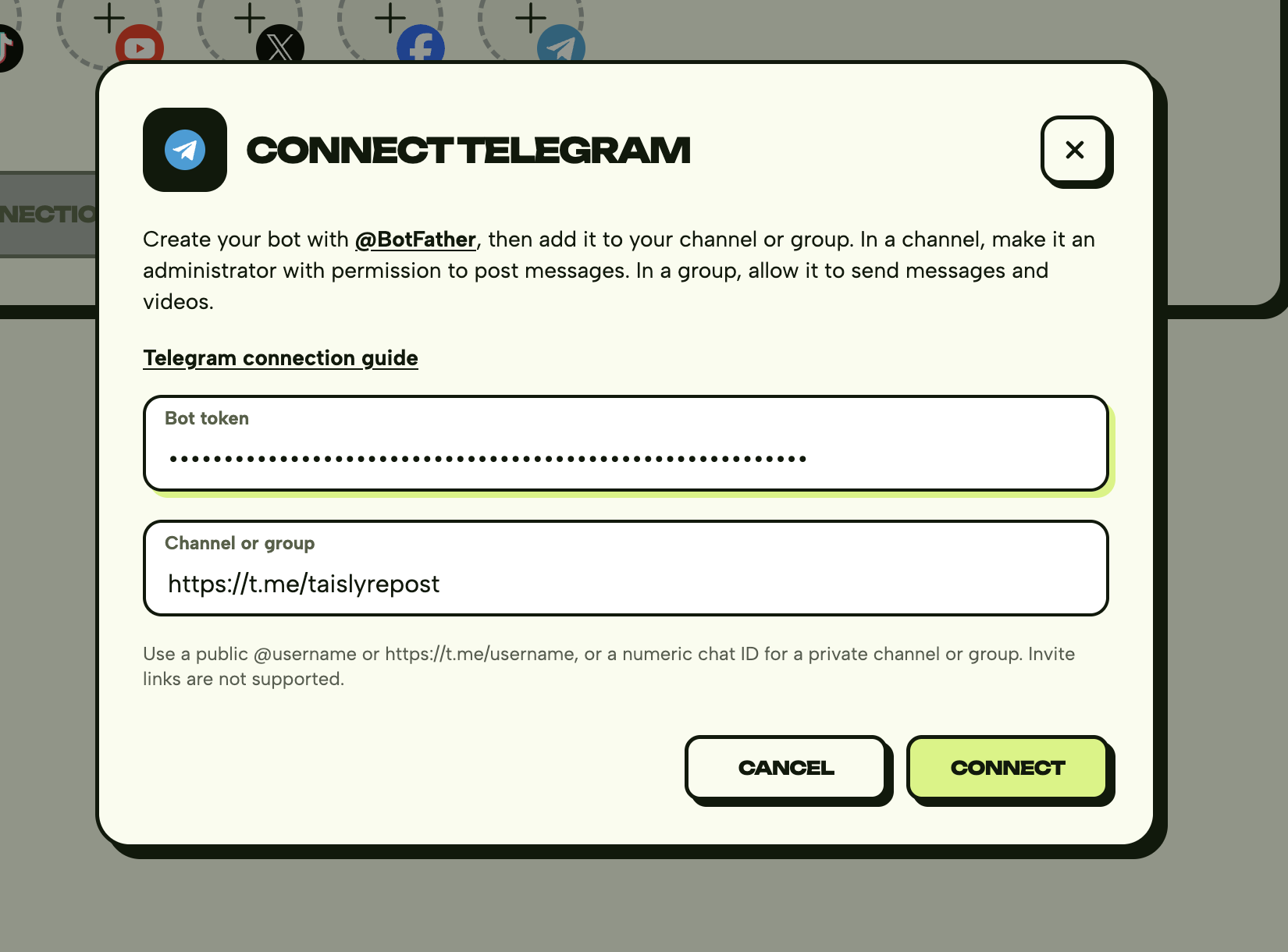
After connecting, your channel or group appears among your accounts. You can now select it when publishing a video.
7. Check your first post
- In Post, select your connected Telegram destination.
- Upload an MP4 video and add a caption.
- Publish now or choose a scheduled time.
- Check the result in History, then open the channel in Telegram.
The maximum video size is 500 MB. Keep your Telegram caption within 1,024 characters.
If the connection fails
- Invalid token: use Copy in BotFather again and paste the complete key without spaces. The bot's username and your Telegram password are not tokens.
- Channel not found: use the channel's link or ID, not your bot's. Invite links are not supported.
- Missing permissions: make sure you added the correct bot to this channel and allowed Post Messages. Groups need permission to send messages and videos.
For automatic reposts, choose a supported source platform and select Telegram under To, not From.
Keep your bot token private. Taisly does not need your Telegram password or access to your personal conversations.